
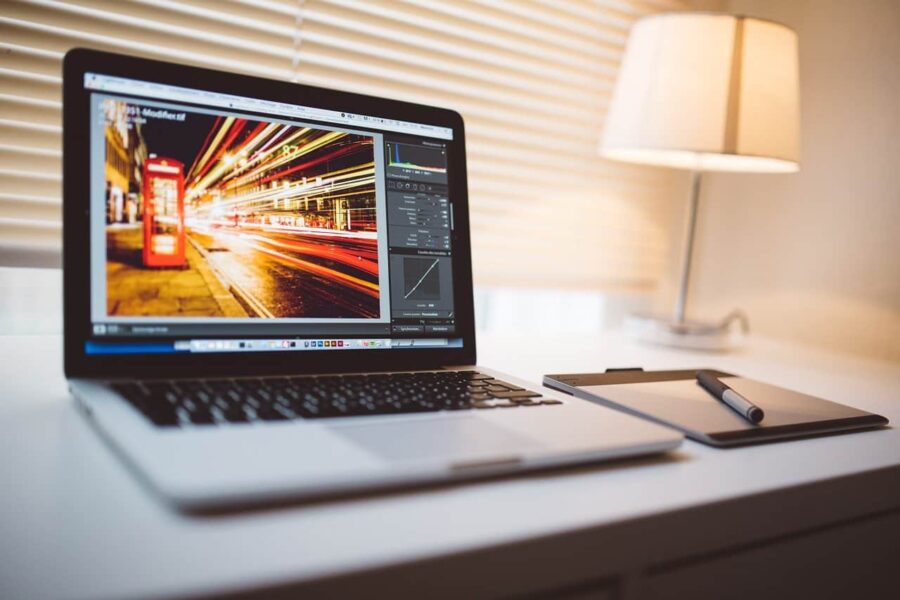
Optimising images and photos and adding them to your website correctly can greatly improve its performance. These steps also do not take much time. You only need to know a few simple rules to follow.
This article focuses on adding and optimising images in WordPress, the most widely used content management system, but many of the tips also apply to other CRMs.
Before we start optimising images, let us look at the most common sources of featured images for articles.
- Your own photos or images – the ideal option, where you create the images yourself, but you need at least a basic eye for graphics and photography. The second requirement is at least an average camera or mobile phone.
- Stock photo sites – the most common way to get photos. I personally recommend these free stock photo sites: Pixabay, Unsplash, Pexels, Stocksnap, Burst.
- Images for reuse – in search engines, you can filter your search to show only photos licensed for non-commercial reuse.
How to optimise and upload images and photos correctly, step by step
Uploading an image or photo to your website starts with downloading a photo from the internet or moving your own photo to the website.
- At this stage, it is worth choosing the right image format. JPEG is still the most widely used, as PNG images are larger in file size.
- You should name the image so that the name alone tells you what the image is about. This often means replacing the camera’s sequence number with a short piece of text.
- If you edit the image in a graphics editor before uploading it, you can optimise its resolution at the same time. For blog images, a width of 900 pixels is more than enough.
- If you want your images in truly top shape, you can use a plugin (WP Smush) that can convert images to the WebP format.
Optimising image size
Large images slow down a website, and website speed is very important today. For e-shops, even a delay of a few tenths of a second compared with competitors changes conversions by several percent! Website speed is also one of Google’s ranking factors.
One option is to optimise or reduce the image before uploading it, but in WordPress you can also resize the image within the system itself in a few clicks.

Images or photos several MB in size are a major problem. All images should be in the range of a few KB, ideally under 150 KB.
If you are adding an image to a post or article, the ideal approach is to click + at the end of a new line where you want to insert the image and select the Image block.

Then upload the image to the media library. Here you can resize the image, add ALT text, a title and a description, and rename it (although it is recommended to do this before uploading it to the website).

How to optimise images for the web without losing quality
“Without losing quality” usually means without any loss you can see. There are two types of compression. Lossless compression removes redundant data and keeps every pixel unchanged. Lossy compression discards detail the eye is unlikely to notice, which saves far more space. For photos, a careful lossy setting is usually the best way to get a small file that still looks sharp.
- Resize first. Scale the image to the largest width it will actually be shown at. A 4,000 pixel photo shown 900 pixels wide wastes most of its data.
- Choose the format. Use JPEG or WebP for photos. Use PNG or WebP for graphics with text, sharp edges or transparency.
- Compress gradually. Lower the quality setting step by step and compare the result with the original at 100% zoom. Stop when you start to see blur, banding or blocky edges.
- Remove metadata. Camera details and location data stored in the file add weight and are not needed on a website.
- Keep the original. Always compress a copy so you can return to the full-quality file later.
How to optimise JPEG images
JPEG uses lossy compression, so every save at a lower quality setting throws away more detail. Edit and export from the original rather than re-saving an already compressed file several times. Most editors offer a quality slider. For many photos, a middle to upper setting gives a large saving with no visible difference, but the right value depends on the picture. Images with fine detail, such as foliage or fabric, need a higher setting than simple shots with smooth backgrounds. Exporting as a progressive JPEG lets the image appear quickly in low detail and sharpen as it loads.
The best WordPress plugin for image optimisation, WP Smush
WP Smush is one of the most popular image optimisation plugins for WordPress for several reasons. It reduces the file size of images without reducing image quality. Image compression also takes place outside the website, so it does not put any load on it.
You can also set the maximum size in px that is allowed to be uploaded to the website. If you upload a larger image, it will then be uploaded at this maximum size.
Tip: If you need to speed up a WordPress website, do not hesitate to find an experienced professional. For example, I worked with pocitacovo.sk on website speed optimisation.
How to bulk optimise images for the web
If your website already has hundreds of images, editing them one by one is not practical. Most WordPress optimisation plugins, including WP Smush, offer a bulk option that compresses images already in the media library. Run it once after installation, then let the plugin handle new uploads automatically.
Outside WordPress, you can use desktop image editors with batch export, dedicated compression apps or command line tools. They let you apply the same width, format and quality to a whole folder at once. Before you start, follow these steps.
- Back up your media library or original files.
- Test your settings on a few typical images first.
- Check a sample of the results, especially photos with faces, text or fine detail.
Common mistakes when optimising images
- Uploading photos straight from a camera or phone without resizing them.
- Saving screenshots and logos as JPEG, which blurs text and edges. PNG or WebP keeps them crisp.
- Compressing the same file repeatedly, which adds visible artefacts.
- Displaying a huge image at a small size. The browser still downloads the full file.
- Forgetting older content. New uploads are optimised, but old posts still load heavy files.
Website identity
Portrait, landscape, small or large images. A website benefits when its images have a similar size and shape. This creates a much better impression for readers.
Images that do not yet appear anywhere else on the internet also add real value. If you only copy images from stock photo sites, you lose authenticity, and to advanced users this may even look suspicious.
For articles and blog posts, it is better to choose images and landscape photos.
Alternative text or image ALT text
Image ALT text describes the image if it fails to load. Alternative text is an SEO factor, and it is strongly recommended to add it to all images on the website that convey something. As described above, it is better to enter the ALT text in the Media Library. Another option is to enter it when selecting the block, but this applies only to the image’s placement in that particular post or article.
How to write image ALT text
ALT text should describe the image. That is its main purpose. Where relevant, it should also contain the keywords that the page or article focuses on. If you want to write good ALT text for the SAMSUNG ME 83 M/XEO microwave oven, the ALT text should not contain only the product name SAMSUNG ME 83 M/XEO or, conversely, only “microwave oven”.
alt=”SAMSUNG ME 83 M/XEO” 🥺
alt=”microwave” 🥺
alt=”SAMSUNG ME 83 M/XEO – Microwave oven” ✔️
alt=”SAMSUNG ME 83 M/XEO – Stainless steel microwave oven” 😎 ✔️
alt=”SAMSUNG ME 83 M/XEO – Freestanding microwave oven” 😎 ✔️
When writing ALT text, imagine how you would best describe the image to a blind person in three to six words. After all, that is why ALT text was originally created.

How long should ALT text be? The usual guideline is up to 125 characters, but ideally you should capture the essence of the image in 3-6 words.
Do not list keywords; instead, describe the image accurately.
Image title and description
WordPress also lets you fill in an image title and description. From an SEO perspective, these two attributes are not as important as image size and ALT text.
The title should be a shorter text that appears when you hover the mouse over the image.
The description, on the other hand, is most often shown below the image and is linked to it. It adds information about the image or conveys information directly related to it. On some websites, descriptions are shown only when the image is clicked or when browsing a gallery, making them the reader’s only textual guide.
Using the microwave example, the title could contain only the exact model of the microwave oven, “SAMSUNG ME 83 M/XEO”. The description, by contrast, could expand on some features that users may think of when looking at the photo, for example the microwave’s capacity or the material it is made of. It is best to write the description in full, descriptive sentences.
In WordPress, however, a lot depends on the theme, which may not display descriptions and titles at all, or may display them in different positions.

Be sure to also read our articles on anchor text and online business.
Frequently asked questions about optimising images for the web
What is the best way to optimise images for the web?
Resize each image to the width it is displayed at, choose a suitable format and compress it moderately. Then compare the result with the original to make sure no visible detail is lost. On a WordPress website, a plugin can apply these steps automatically to every upload.
How do you optimise image size for the web?
Start with the largest width the image will appear at in your layout. A full-width banner needs more pixels than a picture inside an article. WordPress also creates smaller copies of each upload automatically, so phones and tablets can load a lighter version.
Can you compress an image without losing any quality?
Yes, lossless compression keeps every pixel unchanged, but the file savings are smaller. Lossy compression saves much more space and, at a sensible setting, the difference is usually not visible. For photos on a website, careful lossy compression is the common choice.
Is WebP better than JPEG for websites?
WebP files are usually smaller than JPEG files at similar visual quality. The format supports both lossy and lossless compression as well as transparency. All modern browsers support it, so it is a safe choice for most websites.



Leave A Reply