
Most Czech websites have Google Analytics 4 installed. Only a fraction of them can make decisions based on it.
The problem is not the tool. The basic code was installed, nobody set up conversions, and nobody has looked at the reports since, because they reveal nothing.
This article covers five settings that make the data answer the questions you actually care about. We skip registration and adding the code, as Google’s help pages already explain them.
Why most accounts give no answers
By default, Analytics measures visits. On its own, that information is almost useless.
The questions you need to answer are different: which channel brings people in, what they buy, how much one order costs us and which page loses people.

The difference between an account that only collects data and one you can make decisions from is about half a day of work. It comes down to the five settings described below.
If you want to measure SEO specifically, Analytics is only half the story. Google Search Console covers the other half.
How Google Analytics 4 works
GA4 is built on events. Every interaction is recorded as an event with parameters, whether it is a page view, a scroll, a click or a purchase. Sessions and users are assembled from these events afterwards.
A tracking tag on your website sends the events to a property through a data stream. You can install the tag directly in the code, through a plugin in your content management system or through Google Tag Manager. One property can hold streams for a website and for iOS and Android apps.
Some events are collected automatically, such as the first visit and the start of a session. Others come from enhanced measurement, which you switch on in the data stream settings. It covers scrolls, outbound clicks, internal site search, file downloads and video engagement. Anything specific to your business, such as a submitted enquiry form, you usually define yourself and then mark as a key event.
Five settings it cannot work without
The order below is deliberate. Each step builds on the previous one, and the others are pointless without the first.
You can do most of them in the interface. Only some need Google Tag Manager.
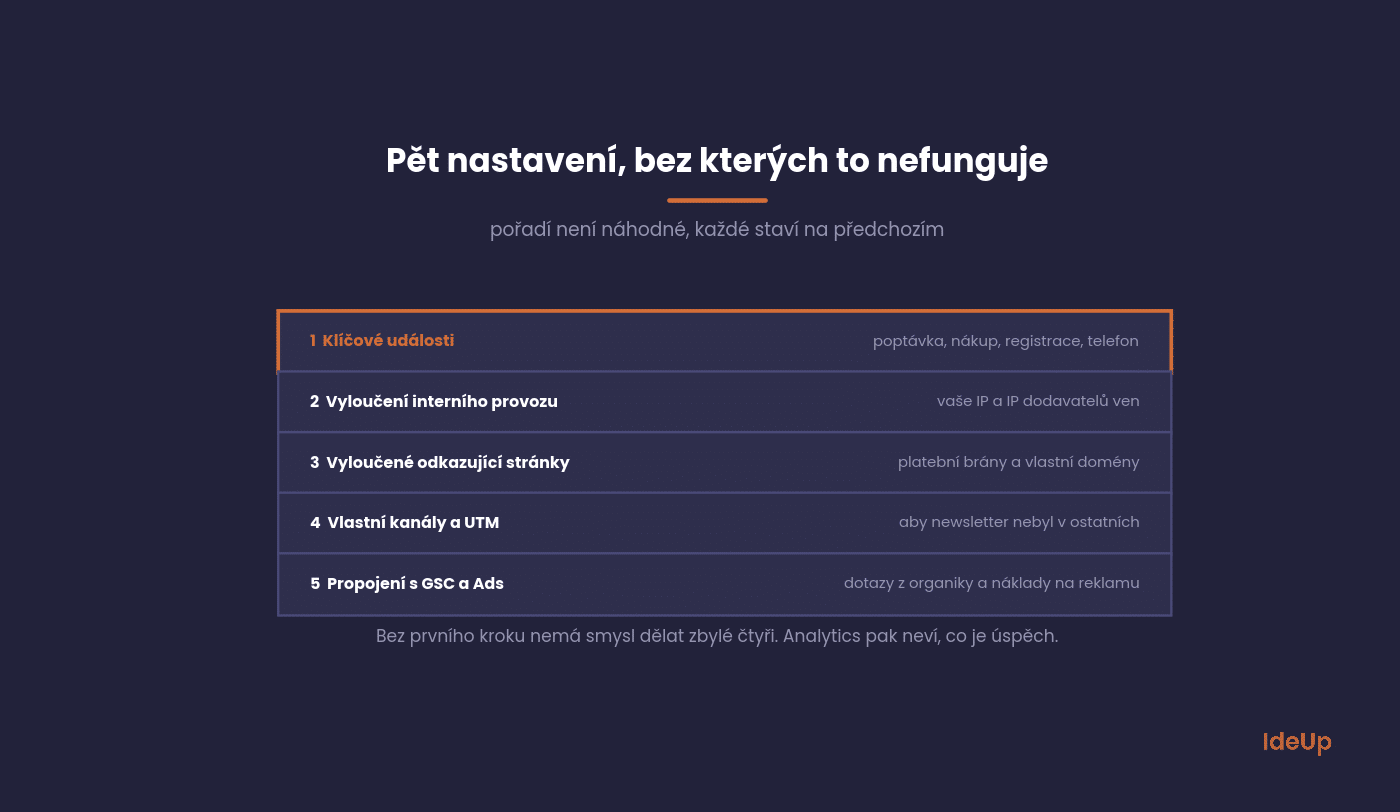
1. Key events
Mark what counts as success for you: a submitted enquiry, a purchase, a registration, a file download or a click on a phone number. In GA4, these are called key events.
Without this step, Analytics does not know what a good result is, and all other reports only show how people move around the website.
2. Excluding internal traffic
Exclude your own IP addresses and those of your suppliers. On smaller websites, internal traffic can distort the figures by tens of percent.
You set this up in the data stream settings in the admin. It takes five minutes and saves you from plenty of wrong conclusions.
3. Excluding referral spam and payment gateways
A payment gateway in your list of sources means the customer journey is broken and the conversion is credited to the gateway instead of the real channel.
Add payment gateways and your own domains to the list of unwanted referrals. For online shops, this is one of the most common mistakes of all.
4. Custom channels and UTM discipline
The default channel grouping will not suit you in half of cases. Your newsletter may end up in “Other” and paid campaigns from Seznam (the Czech search engine) in “Referral”.
Set up your own channel groups and, above all, standardise how you tag campaigns. Without UTM discipline, any grouping is useless.
5. Linking Search Console and Google Ads
Linking Search Console adds organic search queries to Analytics. Linking Ads adds costs.
Only with costs can you calculate return. Without them, you report revenue and pretend the advertising was free.
Four reports worth tracking
Analytics offers dozens of screens, and you will never open most of them. For clients, we set up four views, and no more are needed.
The aim is to return to them every month and for each one to lead to a decision.

Acquisition by channel. How many people each channel brought and how many of them completed a key event. This is where you look first.
Landing pages. Where people arrive and where they leave. It shows which page to fix before writing a new one.
Conversion paths. How many touchpoints come before an order. With longer decision-making, you will find that the last click gets the credit for the work of other channels.
Mobile versus desktop. A drop in conversion rate on mobile is the most common silent revenue killer, and it does not show up in the overall figures.
How to use the Google Analytics dashboard as a beginner
The left-hand menu has a few main areas. Home shows a quick overview, Reports holds the standard reports, Explore lets you build your own analyses, Advertising covers attribution, and Admin contains all the settings.
A simple routine for your first weeks:
- Set the date range in the top right corner and switch on comparison with the previous period.
- Start with the reports snapshot to see the overall trend.
- Use the Library to add, remove or rename reports so the menu shows only what you need.
- Use Explore when you need a funnel or path analysis that standard reports do not offer.
The most common beginner mistakes are reading a single day instead of a trend, comparing periods of different length and drawing conclusions from very small numbers.
What to watch out for when reading the data
GA4 behaves differently from the old version in several ways, which leads to wrong conclusions. We come across three of them in almost every account.
It is worth knowing them before you show anyone a chart.
Sampling and thresholds. With smaller volumes or when using demographic data, GA4 hides some figures. If a report behaves oddly, check whether there is a threshold warning.
Modelled conversions. Analytics estimates some conversions because it does not have consent for tracking. The figure is an estimate, not a record.
Mismatch with Search Console. A difference of 10 to 20% is normal, because each tool measures something different: clicks versus visits.
Bounce rate in Google Analytics 4
In GA4, bounce rate is the opposite of engagement rate. A session counts as engaged if it lasts longer than 10 seconds, includes a key event or has at least two page or screen views. Bounce rate is the share of sessions that meet none of these conditions.
This means a visitor who reads your article for two minutes and then leaves is no longer a bounce. The metric is therefore lower and more meaningful than many people expect from older tools.
Bounce rate is not shown in the default reports. You add it by customising a report or by using it in Explore. Compare it between similar pages, not across the whole website. A contact page and a long guide naturally behave very differently.
How to turn it into a report someone will read
A report in Analytics looks good, but nobody will open it on their own. Moving it to Looker Studio solves this and costs nothing.
Build a single page with five figures and a comment on each one saying what you will do with it.
A practical set: revenue and number of conversions, new versus returning users, performance by channel against the previous period, conversion rate by device and top landing pages.
Analytics Mania, today the most cited GA4 resource of all, has a well-written detailed guide to installation via Tag Manager.
Questions about measurement
Five questions we get from marketers who manage their account themselves.
Treat the answers as general guidance.
How long does GA4 keep data?
Two months by default, which is not much. Switch it to 14 months straight away, as it cannot be changed retroactively.
If you need longer time series, export the data to BigQuery or download it regularly into your own spreadsheet.
Do I need Google Tag Manager?
Not for basic measurement. As soon as you want to measure clicks, form submissions or scrolling, it will save you a lot of work.
The second advantage is independence from developers. Marketers can then handle changes to measurement themselves.
By implementing consent mode. Without it, you either track people who have not given consent or lose a large part of your data.
Consent mode also allows Google to model some of the missing conversions. Without it, you lose that estimate too.
Why does my revenue not match my online shop?
Most often because of returns, cancelled orders and missing tracking for some payments. A difference of up to 5% is common, and anything larger is worth investigating.
Check above all payments made outside the website and orders placed by phone. You will never see those in Analytics.
Do I have to use GA4?
No, there are alternatives, and some are more privacy-friendly. The advantage of GA4 is its links with Ads and Search Console, and the fact that every supplier knows how to use it.
If privacy and simplicity are your main concerns, alternatives such as Matomo or Plausible are worth considering.
Where to start
Open the key events overview in Analytics. If the list is empty or is missing what you earn money from, you have your first task.
The second task is to check the data retention period. If it is set to two months, change it today.
Want to set it up properly the first time? Measurement is part of our services, and we will be happy to go through it with you in a consultation.
Frequently asked questions about Google Analytics 4
How do I set up Google Analytics 4?
You create an account and a property, add a web data stream and install the tag on your website through the code, a plugin or Google Tag Manager. After that, the real work starts with the five settings described in this article. Without them, the account only collects visits.
Is Google Analytics 4 suitable for beginners?
Yes, as long as you limit yourself to a few reports at first. Customise the menu to show only what you need and return to the same views regularly. Explore and advanced attribution can wait until you are comfortable with the basics.
Is Google Analytics 4 free?
The standard version is free and is enough for most small and medium-sized companies. Large organisations can use the paid Analytics 360, which offers higher limits and service-level guarantees.
How is GA4 different from the old Google Analytics?
The older Universal Analytics was built around sessions and page views, while GA4 records everything as events. Some familiar metrics changed meaning, including bounce rate. Figures from the two versions are therefore not directly comparable.